
TSBroadcaster Bit Rate
S&T's TSBroadcaster can dynamically manage bandwidth between different OCAP applications on a single PID, making it easier to distribute, re-multiplex and manage outputs. This provides statistical multiplexing within the constant bit rate assigned to a specific DSM-CC object carousel.
More About TSBroadcaster Bit Rate Management
For each object carousel, the total carousel bit rate is partitioned so that each playout is allocated its nominated bit rate, plus, if requested, a share of any spare bit rate left over in the carousel.
If an application set is required by more than one playout concurrently then a single instance is shared between all the playouts that reference it.
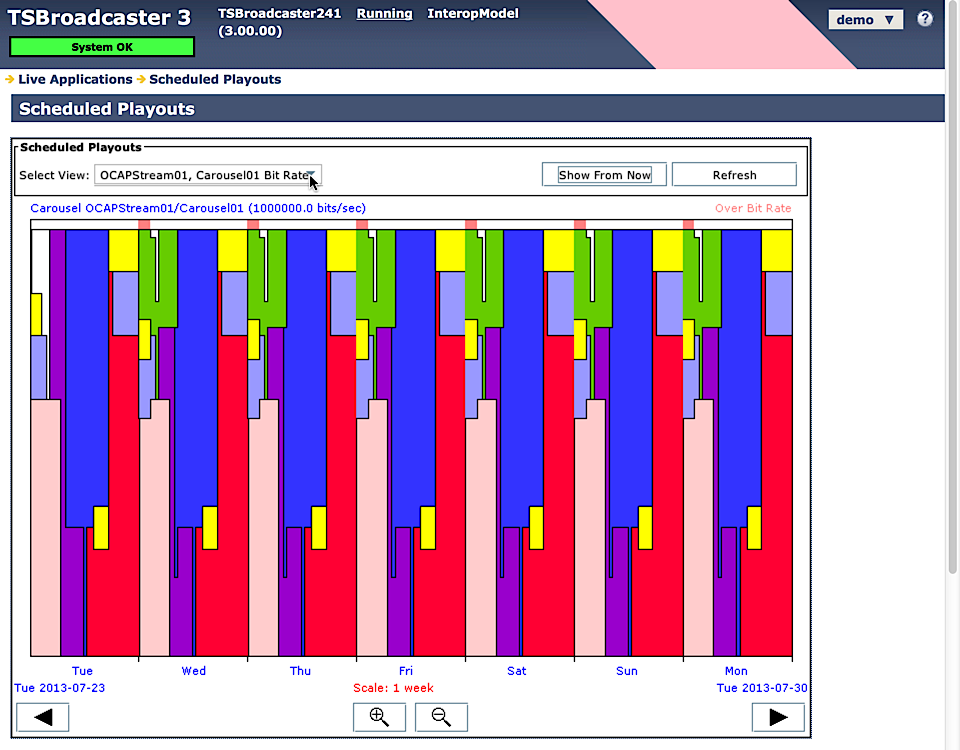
The view will now show the bit rate allocation for applications over time. If you move the cursor over the display, a readout will be presented showing the playout name, the application set name, the requested bit rate and the allocated bit rate.
If more bit rate is requested than is available, the graph shows a pink area to indicate that the playouts are over budget. See example display from Scheduled Playouts, the pink vertical bars only occur when the 'red' and 'yellow' applications are running, indicating that the combined bandwidth allocated to these applications is causing the bit rate to be exceeded.
The solution is reduce any of the bit rates to one or more of the applications running at that instance.Note that the basic bit rates for each application set are all scaled down by the same percentage to make the applications fit within the carousel budget.
TSBroadcaster Bit Rate Management - Summary
- Dynamically manages bandwidth between different OCAP Applications on a single PID.
- Statistical multiplexing within constant bit for each object carousel.
- Graphical display of bit rate allocations, including bandwidth over-budget indication.
- Share of spare bit rate left over each carousel.